How to use Leaflet with React?
When working with geospatial data, like GPX tracks from hikes, you’ll eventually want to visualize it on a map. While there are many mapping solutions out there, one of the most popular lightweight libraries is Leaflet. In this post, I’ll show you how to quickly get started with Leaflet in a React application using React Leaflet.
What Is Leaflet?
Leaflet is an open-source JavaScript library for building interactive maps directly in the browser.
It focuses on simplicity and performance, making it a great choice for projects where you want full control over how your map looks and behaves without adding unnecessary complexity. With Leaflet, you can render maps, add markers and popups, draw shapes like lines or polygons, and display geographic data such as GeoJSON or GPX tracks.
If you’ve ever worked with services like Google Maps, the core idea will feel familiar: displaying a map, adding points of interest, and interacting with locations.
The main difference is that Google Maps is a fully managed platform with built-in services (routing, places, APIs), while Leaflet is just the mapping library itself.
It doesn’t come with its own data or services, which means you’re free to choose your own map providers (like OpenStreetMap) and customize everything to your needs.
This flexibility is exactly why Leaflet is so popular among developers. It gives you a lightweight foundation to build custom map-based applications, whether that’s visualizing hiking routes, displaying GPS data, or creating entirely new geospatial tools.
Using Leaflet in a React Application
If you’re working with React, you generally don’t use Leaflet directly.
While it’s technically possible to integrate the library on your own, it quickly becomes inconvenient and doesn’t align well with how React applications are typically structured.
Instead, the recommended approach is to use React Leaflet.
It provides a set of ready-to-use React components that wrap Leaflet’s functionality and let you work with maps in a way that feels natural inside a React project.
Rather than manually initializing maps and updating them imperatively, you can simply compose components like MapContainer, TileLayer, and Marker. Just like any other part of your UI.
This makes your code easier to read, easier to maintain, and much more consistent with the rest of your application.
In short: if you’re using React, React Leaflet is the easiest and most practical way to bring interactive maps into your project.
Getting Started with React Leaflet
To get started, you only need a basic React application.
If you don’t have one yet, you can quickly set one up using tools like Vite. Once your project is ready, the first step is to install the required dependencies.
React Leaflet builds on top of Leaflet, so you’ll need both packages:
npm install leaflet react-leaflet
In case you are using TypeScript, there is one catch that left me wondering for a while: you have to actively install the type definitions:
npm install -D @types/leaflet
After installing the dependencies, there’s one small but important detail: Leaflet requires its CSS to be included manually. Without it, the map will render incorrectly (for example, tiles or markers might not appear as expected).
You can import the stylesheet directly in your main entry file (e.g. main.tsx or index.ts):
import "leaflet/dist/leaflet.css";
That’s all the setup required. With the dependencies installed and the styles in place, you’re ready to render your first map component.
A Minimal Example
Now that everything is set up, let’s render a simple interactive map.
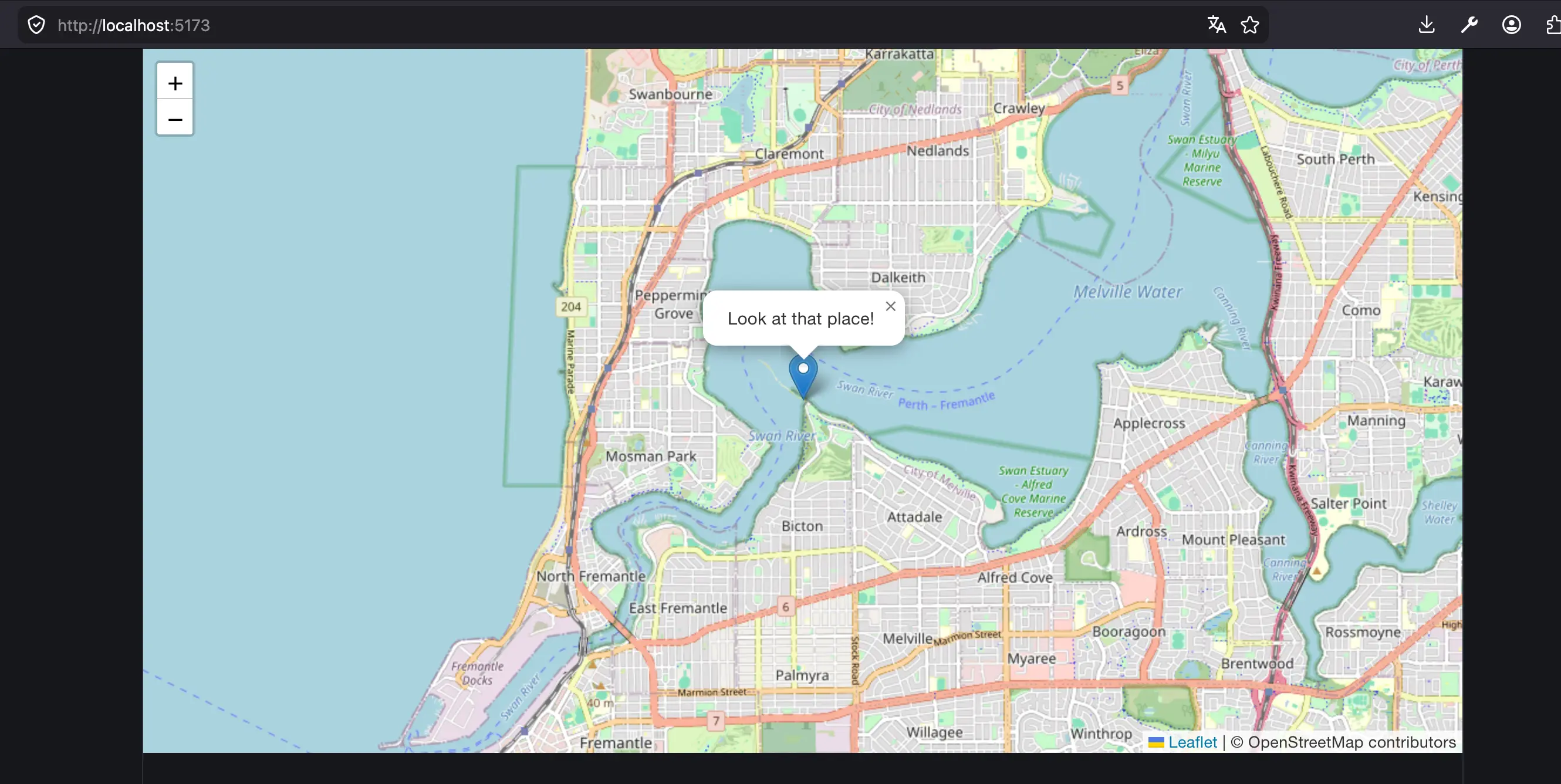
In this example, we create a map centered on a specific location, load map tiles from OpenStreetMap, and place a marker with a small popup. If everything is working correctly, you should see a map with a marker that you can click on.
import { MapContainer, TileLayer, Marker, Popup } from "react-leaflet";
export const MapView: React.FC = () => {
const position: [number, number] = [-32.011, 115.786];
return (
<MapContainer
center={position}
zoom={13}
style={{ height: "600px", width: "100%" }}
>
<TileLayer
attribution='© OpenStreetMap contributors'
url="https://{s}.tile.openstreetmap.org/{z}/{x}/{y}.png"
/>
<Marker position={position}>
<Popup>Look at that place!</Popup>
</Marker>
</MapContainer>
);
}
It should look something like this:
Let’s briefly break down what’s happening here:
MapContainerdefines the map itself, including its center position and zoom levelTileLayerprovides the actual map tiles (in this case from OpenStreetMap)Markeradds a clickable point on the mapPopupdisplays additional information when the marker is clicked
Because everything is built using React components, you can easily extend this setup, for example by rendering multiple markers from an array or by dynamically updating the map based on your data.
Common Pitfalls When Using React Leaflet
When getting started with React Leaflet, there are a few small issues that can be confusing at first. Here are some common ones and how to fix them.
1. Map is not displayed correctly
If your map appears broken (e.g. tiles missing or layout looks off), it’s usually because the Leaflet CSS is missing.
Make sure you’ve imported it in your main file:
import "leaflet/dist/leaflet.css";
2. TypeScript errors with center or position
When using TypeScript, you might see errors like:
Type 'number[]' is not assignable to type 'LatLngExpression | undefined'
This can happen if you type your coordinates only as number[] which is not strong enough. The type LatLngExpression which is expected by center for example wants at least [number, number]
const position: [number, number] = [-32.011, 115.786];
3. Marker icons not showing
A common issue with Leaflet is that default marker icons don’t load correctly in modern bundlers.
If your markers are missing, you may need to configure the icon paths manually or import them properly. This depends on your setup, but it’s something to be aware of early on.
These small issues can be frustrating at first, but once they’re resolved, working with React Leaflet becomes straightforward and enjoyable.
Where to Go from Here
At this point, you have everything you need to get started with interactive maps in a React application. You’ve seen how to set up React Leaflet, render a basic map, and add simple elements like markers and popups.
From here, things can quickly become more interesting. You can:
- render multiple markers from dynamic data
- draw lines or routes on the map
- handle user interactions like clicks or map movements
- integrate external data sources
Until then, try experimenting with the components you’ve seen here. React Leaflet is simple to get started with, but powerful enough to support much more complex use cases.
If you want to stay up to date with the things I am going to do with it you can consider subscribing to my newsletter. See you there!
Thank you