

GPX vs GeoJSON: Which Geodata Format Should You Use?
Geodata information can be stored in many different ways. Two of them are GPX and GeoJSON. What are the differences of these two and what are they good for? After reading this article you know more about it and how they can both be used.
After learning more about GPX and how it is built, I became interested in what other ways exist to handle geospatial data.
It turns out there are many different ways to store geodata, and one of them is even based on a very well-known format: GeoJSON stores geospatial data using standard JSON.
How it differs from GPX and for which use cases it can be used is what this article is about.
What are the Key Differences?
Both formats store geospatial information, so what are the key differences?
GPX Recap
In general, a GPX file is an XML-based file format used by GPS trackers to store information about a route or track.
It is mainly used by the outdoor community to track hikes, biking tours, or even road trips.
GPX files are perfect for sharing structured route information between systems because they follow a strict structure.
GeoJSON in a Nutshell
GeoJSON, on the other hand, is a more flexible format mainly used by mapping and visualization software to display geospatial information.
It can not only show tracks, but also more complex structures like polygons and even polygon cutouts (see below for some examples).
The JSON format itself is standardized, but it can also hold additional metadata inside a properties object.
tl;dr
Long story short: GPX files are really good at storing information about a route or track based on waypoints in sequence. GeoJSON is better suited for displaying and structuring that information in more flexible ways.
If you want to know more about GPX files, I really encourage you to check out my blog post on GPX files. In this post we are focusing more on GeoJSON.
The Structure of GeoJSON
As mentioned earlier, GeoJSON is a standardized format, so it follows strict rules.
In the following sections we want to look at the most basic concepts so you can get an idea of how GeoJSON works.
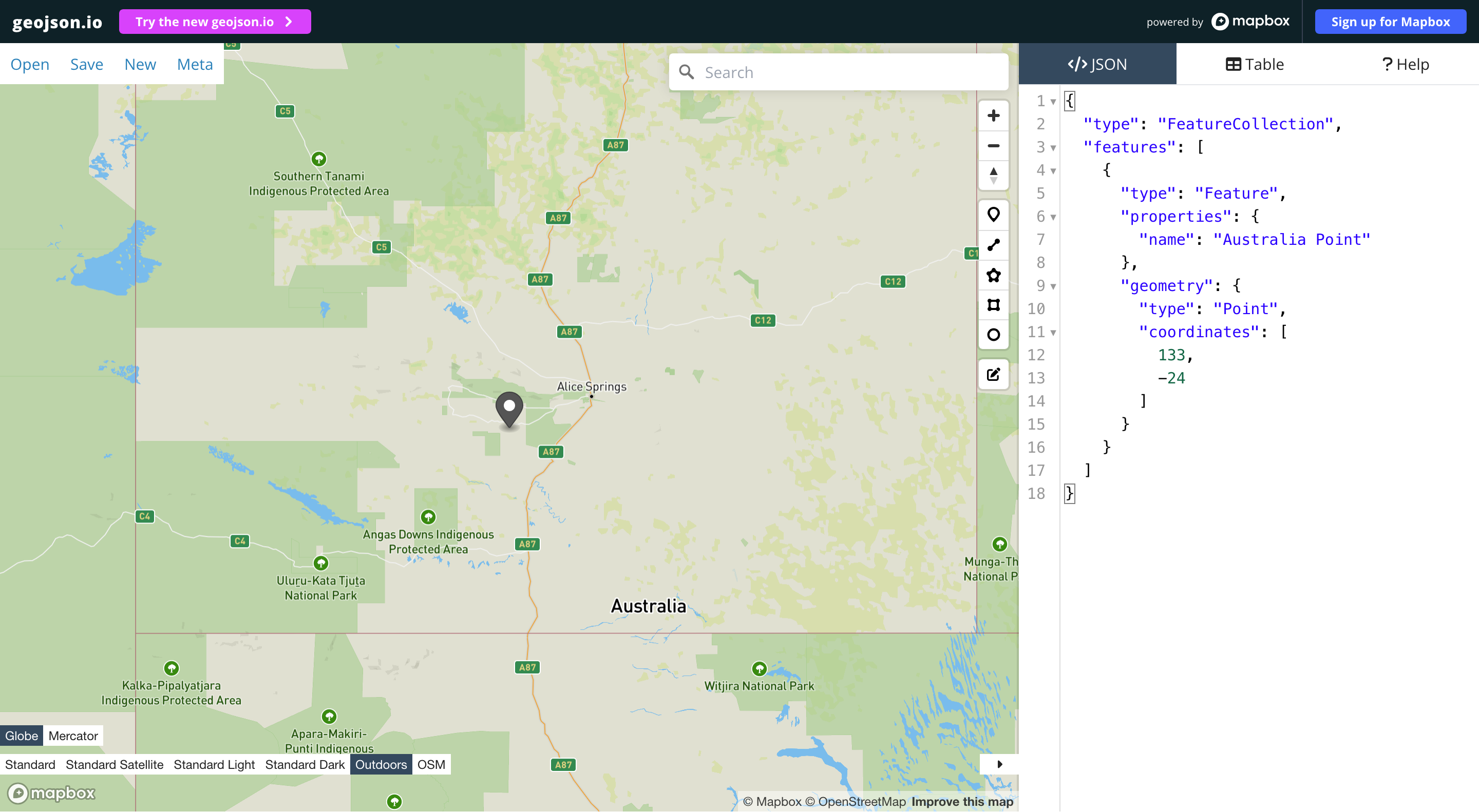
For visualization I use the app geojson.io, which makes it very easy to validate and preview GeoJSON files.
It all begins with a Point
Because we are talking about geospatial data, there has to be a way to define points.
The most basic point definition in GeoJSON looks something like this:
{
  "type": "Point",
  "coordinates": [133.0, -24.0]
}
This is already a valid GeoJSON object, although you are not yet using many of the benefits of the format.
The Feature Wrapper
To get more out of your point, you can wrap it (and any other geometry) inside a Feature.
This allows you to add additional metadata inside a properties object.
Many applications that work with GeoJSON also allow configuration values in there, like marker colors or labels.
{
  "type": "Feature",
  "properties": {
    "name": "Australia Point"
  },
  "geometry": {
    "type": "Point",
    "coordinates": [
      133,
      -24
    ]
  }
}
If you want to store multiple features, there is also a FeatureCollection:
{
  "type": "FeatureCollection",
  "features": [
    {
      "type": "Feature",
      "properties": {
        "name": "Australia Point"
      },
      "geometry": {
        "type": "Point",
        "coordinates": [
          133,
          -24
        ]
      }
    }
  ]
}
Either way, your point will look something like this in the visualization:
More Complex Geometry
This is the point (no pun intended) where GeoJSON really shines compared to GPX.
There are more advanced geometry types you can use to define the visuals you want to achieve.
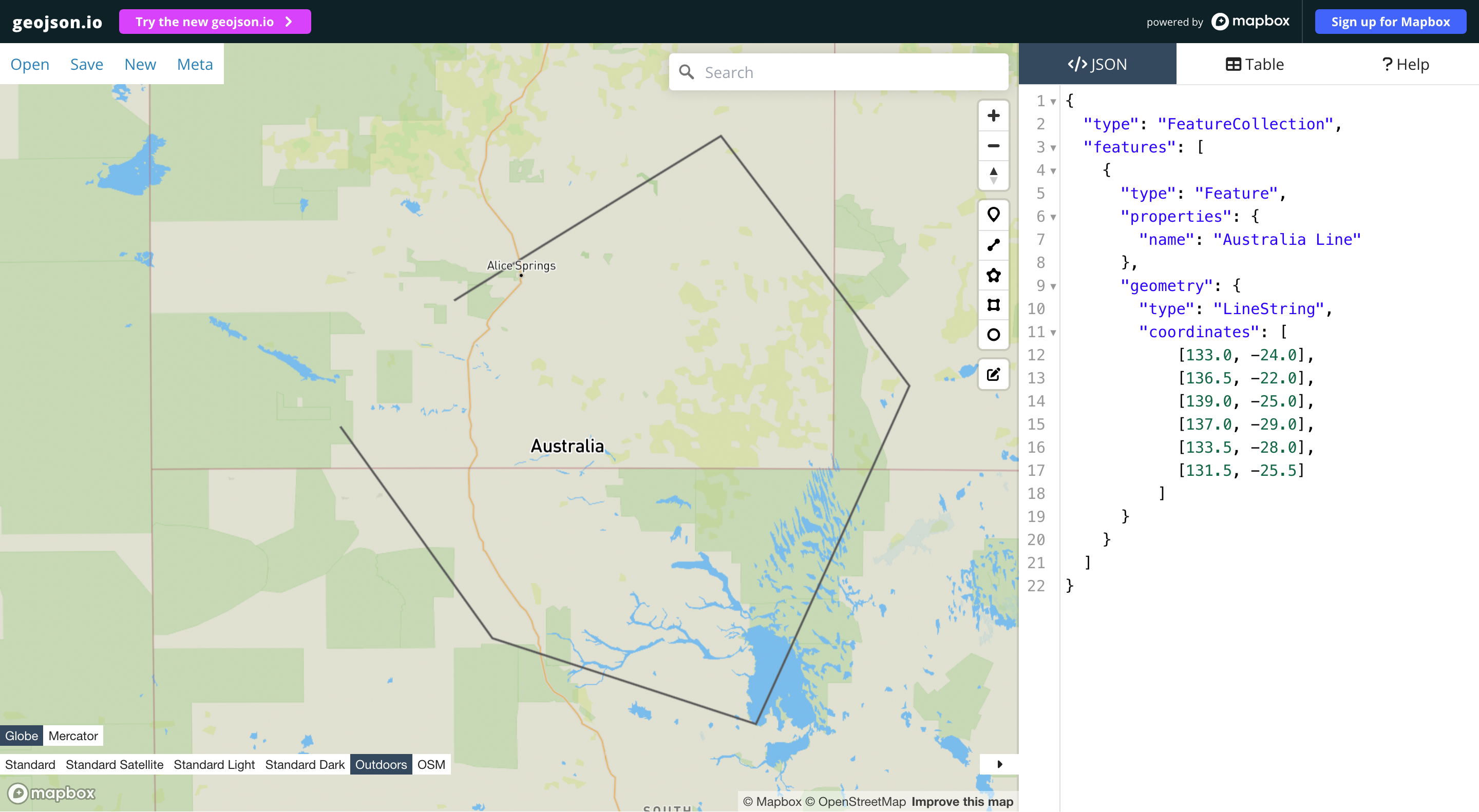
For example, you can directly define a route in GeoJSON via a LineString:
{
  "type": "FeatureCollection",
  "features": [
    {
      "type": "Feature",
      "properties": {
        "name": "Australia Line"
      },
      "geometry": {
        "type": "LineString",
        "coordinates": [
          [133.0, -24.0],
          [136.5, -22.0],
          [139.0, -25.0],
          [137.0, -29.0],
          [133.5, -28.0],
          [131.5, -25.5]
        ]
      }
    }
  ]
}
This would look something like this:
Polygons
But you can not only display routes — you can also mark areas on your map using polygons.
For that to work, you need to make sure that your first and last coordinate are identical so the polygon can be closed.
{
  "type": "FeatureCollection",
  "features": [
    {
      "type": "Feature",
      "properties": {
        "name": "Australia Polygon"
      },
      "geometry": {
        "type": "Polygon",
        "coordinates": [
          [
            [133.0, -24.0],
            [136.5, -22.0],
            [139.0, -25.0],
            [137.0, -29.0],
            [133.5, -28.0],
            [131.5, -25.5],
            [133.0, -24.0]
          ]
        ]
      }
    }
  ]
}
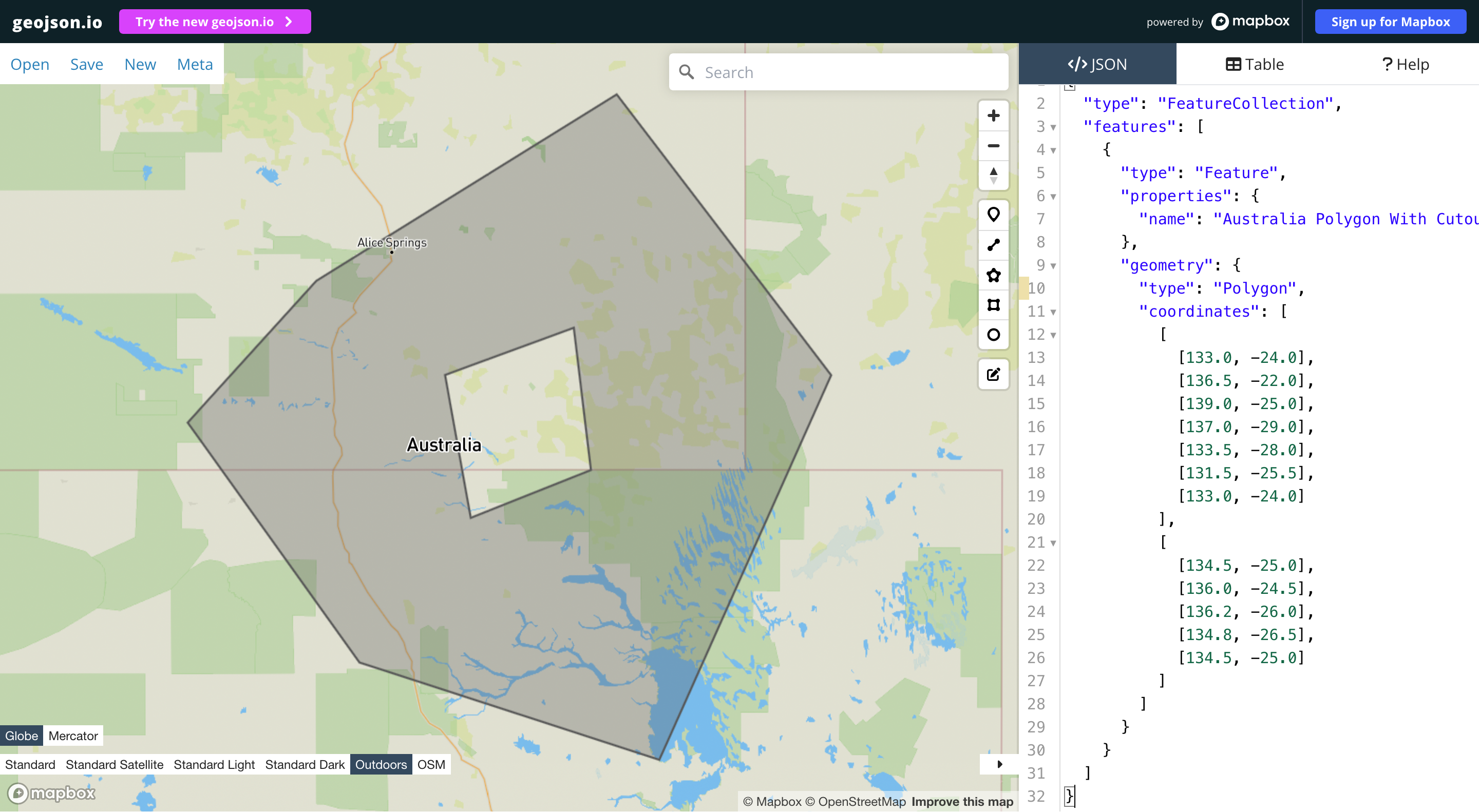
Also note that the coordinates in a Polygon are stored in a multidimensional array.
When you pass another set of coordinates (or multiple sets), they work as cutouts from the main polygon.
So this JSON, for example, will look something like this:
{
  "type": "FeatureCollection",
  "features": [
    {
      "type": "Feature",
      "properties": {
        "name": "Australia Polygon With Cutout"
      },
      "geometry": {
        "type": "Polygon",
        "coordinates": [
          [
            [133.0, -24.0],
            [136.5, -22.0],
            [139.0, -25.0],
            [137.0, -29.0],
            [133.5, -28.0],
            [131.5, -25.5],
            [133.0, -24.0]
          ],
          [
            [134.5, -25.0],
            [136.0, -24.5],
            [136.2, -26.0],
            [134.8, -26.5],
            [134.5, -25.0]
          ]
        ]
      }
    }
  ]
}
GeoJSON as a Better Format for Visualization
After scratching the surface of GeoJSON, it quickly becomes clear that it is much more flexible when working with visualizations.
You can use your GPS tracking device to generate coordinates and then use a format like GeoJSON to decide how you want to display them.
A Word about Coordinates
One thing I noticed while working with GeoJSON is that coordinates use the format:
[longitude, latitude]Normally, many people intuitively expect:
[latitude, longitude]At first this confused me quite a bit, especially when copying coordinates from Google Maps.
Where to go from here?
Of course, you can experiment with more or less complex visualizations of your coordinates. There are plenty of tools out there to explore.
For my part, I am especially interested in finding ways to automatically transform GPX files into GeoJSON.
Since GeoJSON already contains semantic meaning through its geometry types, this transformation is not always as straightforward as it first seems.
If you are interested in how this turns out, feel free to check back again and subscribe to the newsletter.
Thank you for reading — and see you next time.
Keep exploring.
GPX Files Explained: How GPS Tracks and Stores Your Routes
Curious how your hikes turn into data? This post explores how GPS works, what GPX files actually store, and how you can analyze your own recorded routes.
Building interactive maps with Leaflet (Markers, Popups and Events)
Only displaying the route is not enough. In this deep dive I show you how you can turn your map data into interactive elements.