What are Python Virtual Environments (venv) and Why Do They Matter?
Python virtual environments can feel confusing at first, especially for beginners coming from other ecosystems. In this post, we explore what venv actually is, why dependency isolation matters and how virtual environments help keep Python projects clean, reproducible and easier to manage.
I started looking into Python again the other day. When getting started with Python, one topic appears surprisingly early: virtual environments.
At first, they can feel unnecessary or overly complicated.
Why should every project have its own environment? Why not simply install packages globally and start coding?
But the longer you work with Python, the clearer the reason becomes.
Different projects often require different package versions, different dependencies or even different Python versions. Without isolation, things can quickly become difficult to manage and even harder to reproduce.
This is exactly the problem virtual environments are designed to solve.
In this post, we’ll look at what Python virtual environments actually are, why they matter and how you can start using them in your own projects.
And also how you can easily exit them again, once you entered one.
Why Python projects become messy
Python is incredibly easy to get started with.
You install Python, open your terminal and within minutes you can already install packages and start building things.
But this simplicity can quickly become problematic once you start working on multiple projects.
Imagine the following situation:
- Project A requires version
1.xof a package - Project B requires version
2.x - Project C was built months ago and depends on older packages you already updated globally
Suddenly, updating one package can break another project completely.
And because packages are installed globally by default, all projects on your system start sharing the same dependencies and interpreter environment.
This often leads to situations where:
- code works on one machine but not another
- older projects suddenly stop working
- dependency conflicts become difficult to debug
- reproducing setups becomes frustrating
Especially when collaborating with other developers or switching between projects, things can become messy surprisingly fast.
This is one of the core reasons why Python developers rely heavily on virtual environments.
Why dependency management feels different in Python
If you come from other ecosystems like Java, the idea of Python virtual environments can initially feel a bit strange.
For example, Maven also downloads dependencies globally into the .m2 directory. But despite the shared storage location, dependencies are still resolved per project through the pom.xml.
This means different Java projects can safely use different dependency versions without interfering with each other. And another benefit is, that the packages are installed only once, compared to the node_modules folder in npm-projects.
Python historically worked a bit differently.
When installing packages with pip (or pip3), they are often installed directly into the currently active Python environment. And without virtual environments, this environment is frequently the global system interpreter itself.
As a result, multiple projects can end up sharing the same installed packages and dependency versions.
This is where many of the classic Python problems originate, like package version conflicts, broken older projects after updates or inconsistent development environments.
Virtual environments solve this problem by isolating dependencies per project.
Instead of sharing one global environment across everything, each project gets its own independent Python setup.
What a virtual environment actually is
So what actually is a virtual environment?
At its core, a Python virtual environment is simply an isolated Python installation for a specific project.
Instead of using the global Python interpreter and its globally installed packages, the project gets its own local environment with its own dependencies.
This means that installing a package inside one project does not affect another project on the same machine.
A virtual environment usually contains:
- its own Python interpreter reference
- its own installed packages
- activation scripts for your shell
When activating a virtual environment, your terminal session temporarily switches into this isolated setup. Depending on your terminal setup you can also see this displayed:
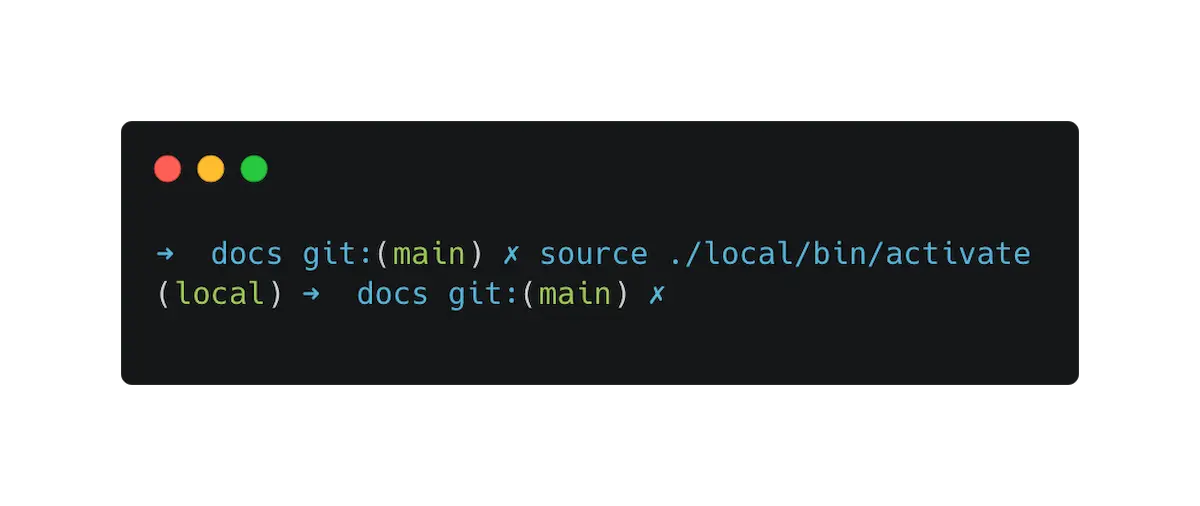
From that point on, commands like python, python3 or pip no longer use the global system installation. Instead, they operate inside the local project environment.
This isolation is what makes Python projects more reproducible and predictable.
Different projects can now safely use different dependency versions without interfering with each other — even on the same machine.
Creating your first venv
Creating a virtual environment in Python is surprisingly simple.
Python already ships with the built-in venv module, so in most cases you do not need to install anything additional.
And as this venv module is installed globally you can use it directly in every project.
Inside your project folder, you can create a virtual environment with the following command:
python3 -m venv .venvThis creates a new folder called .venv inside your project directory.
The folder contains the isolated Python environment, including its own installed packages and activation scripts.
You may notice that many developers use the name .venv specifically. The leading dot marks the folder as hidden on Unix-based systems like macOS or Linux, which helps keep the project directory cleaner.
Another important detail: virtual environments are usually not committed into version control.
Since the environment can always be recreated from dependency files later, committing the entire .venv folder would only unnecessarily increase the repository size.
For this reason, you will typically find .venv entries inside .gitignore files.
After creating the environment, the next step is activating it so your terminal session starts using the isolated Python setup.
Activating and using environments
After creating the virtual environment, it still needs to be activated.
This step tells your current terminal session to start using the local Python environment instead of the global system installation.
On macOS and Linux, you can activate the environment with:
source .venv/bin/activateOn Windows, the command looks slightly different:
.venv\Scripts\activateOnce activated, your terminal usually indicates this by displaying the environment name in front of the prompt (as you could also see on the screenshot above!).
From this point on, commands like python, python3 and pip operate inside the virtual environment.
You can now safely install packages without affecting other Python projects on your machine.
For example:
pip install requestsThe package is now installed only inside the current virtual environment.
And once you are done working inside the environment, you can leave it again with:
deactivateYour terminal session then switches back to the normal global Python environment.
Common beginner mistakes
Forgetting to activate the environment
One of the most common beginner mistakes is forgetting to activate the virtual environment before installing packages.
In this case, pip often installs packages into the global Python environment instead of the local project setup.
This can quickly become confusing because the project may appear to work on one machine while dependencies are actually installed globally.
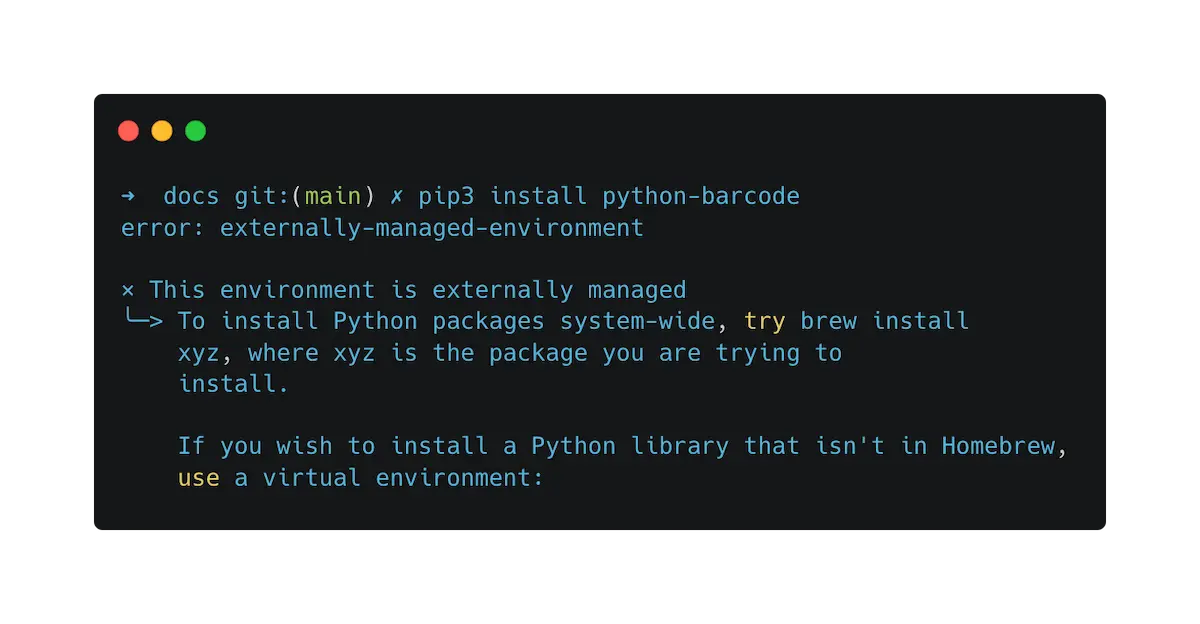
The good news: On some systems (like my MacBook for example), you’ll get a warning when you try to do this (which is awesome!):
Committing .venv into Git
Another common mistake is committing the entire virtual environment into version control.
The .venv folder can become very large and contains generated files that can always be recreated later.
Instead, projects usually commit dependency definitions like requirements.txt while excluding .venv through .gitignore.
Mixing multiple Python versions
Sometimes problems are not caused by packages but by different Python versions.
A project created with Python 3.12 may behave differently when another developer uses Python 3.10 or an older system installation.
Virtual environments isolate packages, but they still depend on the Python interpreter version used to create them.
Creating one global environment for everything
A virtual environment is meant to isolate a specific project.
Using one shared environment across multiple unrelated projects often recreates the exact dependency problems virtual environments are supposed to solve.
In practice, it is usually best to create a separate .venv for each project.
Forgetting to deactivate environments
After working on a project, developers sometimes forget that their virtual environment is still active.
This can lead to accidentally installing packages into the wrong project or running commands against the wrong interpreter.
Using the deactivate command helps reset the terminal session back to the global environment.
Where to go next?
At this point, we all now understand why Python virtual environments exist and how they help isolate dependencies between projects.
But virtual environments are really only one piece of the bigger Python tooling ecosystem.
Once you become comfortable working with venv, the next natural step is understanding how Python projects manage and reproduce dependencies.
This usually includes topics like the requirements.txt, general package version pinning or tools like poetry or uv.
The important part is understanding the underlying idea:
Each project should have its own isolated environment and reproducible dependency setup.
Once you understood this concept, many parts of the Python ecosystem suddenly start making a lot more sense. At least they did for me.
So the best thing you can do next is simple:
Create a small Python project, create your first virtual environment and start experimenting with it. Like I did.
And if you’re interested in following my journey, be sure to subscribe to my newsletter or stop by my YouTube channel — which I recently started as part of the Labs as well.
Thanks