Displaying GPX Files in Leaflet with React
After learning about GPX files and Leaflet, I was curious how to actually display GPX data on a map. On paper, it sounds simple: load a file, render a track, done.
Pretty quickly I discovered the leaflet-gpx plugin, which looked like exactly what I needed. A ready-made solution to parse and visualize GPX tracks in Leaflet.
To be honest: the setup was a bit bumpy at first. Everything seemed correct, TypeScript was happy, but the browser had other plans.
In the end, the solution turned out to be quite straightforward.
This post walks through the setup, the issues I ran into, and the key things to understand when integrating GPX files into a Leaflet map in a modern React + TypeScript setup.
The leaflet-gpx plugin
When searching for ways to display GPX files in Leaflet, you’ll quickly come across the plugin leaflet-gpx.
It has been around for quite a while and is still actively maintained, making it the go-to solution for rendering GPX tracks on a Leaflet map. The plugin handles parsing the GPX file, extracting relevant data like routes and waypoints, and rendering them as layers on the map.
At first glance, this looks like a perfect fit, especially if you’re working with React Leaflet and just want to extend your map with GPX support.
Installation is straightforward, and there are also type definitions available for TypeScript:
npm install leaflet-gpx
npm install --save-dev @types/leaflet-gpx
So far, so good.
However, there is one important detail to understand before using it in a modern setup.
The problem: "L is not defined"
After installing the plugin and wiring everything up, I expected the GPX file to just show up on the map.
Instead, the application crashed immediately with the following error:
Error Uncaught ReferenceError: L is not defined
At first, this was a bit confusing.
Leaflet was already installed and working. React Leaflet was rendering the map correctly. TypeScript didn’t complain either. From a developer perspective, everything looked fine.
So why was L suddenly undefined?
The answer lies in how the leaflet-gpx plugin is built.
Unlike modern libraries that are designed to work with ES modules, leaflet-gpx is a classic Leaflet plugin. It expects Leaflet to be available globally under the variable L.
In older setups, this wasn’t an issue. Scripts were loaded globally, and L was automatically available everywhere.
In a modern React + TypeScript setup, however, Leaflet is imported as a module:
import L from 'leaflet';
This means that L exists only within your module scope and not globally.
When leaflet-gpx tries to access L, it simply can’t find it.
That’s what causes the error.
The fix: exposing Leaflet globally
Once you understand the root of the problem, the fix is surprisingly simple.
Since leaflet-gpx expects Leaflet to be available globally, we need to make sure that L exists on the global window object before the plugin is loaded.
This can be done with a single line:
(window as any).L = L;
This exposes your locally imported Leaflet instance as a global variable. Exactly what the plugin expects.
However, there is one more important detail.
If you import leaflet-gpx the usual way at the top of your file, it will be executed immediately and therefore before L is attached to window. This will cause the same error again.
To avoid this, we need to load the plugin dynamically, after we expose L globally:
(window as any).L = L;

await import("leaflet-gpx");
This ensures that:
- Leaflet is available globally
- the plugin initializes correctly
- no runtime error occurs
One more thing to watch out for: make sure you don’t import leaflet-gpx anywhere else in your project. Even a single static import will break this setup again.
Integrating leaflet-gpx into React Leaflet
Now that the plugin is working, the next step is integrating it cleanly into a React Leaflet setup.
Instead of mixing imperative Leaflet code directly into your components, it’s a good idea to create a small bridge component. This keeps your map logic separated and fits nicely into the React approach.
The idea is simple:
- get access to the Leaflet map instance
- load the plugin dynamically
- attach the GPX layer to the map
React Leaflet provides the useMap hook for exactly this purpose.
GpxTrack component
This is how I did it:
import { useEffect } from "react";
import { useMap } from "react-leaflet";
import L from "leaflet";

type GpxTrackProps = {
    url: string;
};

export function GpxTrack({ url }: GpxTrackProps) {
    const map = useMap();

    useEffect(() => {
        let gpxLayer: L.GPX | null = null;
        let cancelled = false;

        async function initGpx() {
            (window as any).L = L;

            await import("leaflet-gpx");

            if (cancelled) return;

            gpxLayer = new L.GPX(url, {
                async: true,
                polyline_options: {
                    color: "#ff2d95",
                    weight: 4,
                    opacity: 0.8,
                },
            });

            gpxLayer.on("loaded", (event) => {
                map.fitBounds(event.target.getBounds());
            });

            gpxLayer.addTo(map);
        }

        initGpx();

        return () => {
            cancelled = true;

            if (gpxLayer) {
                gpxLayer.removeFrom(map);
            }
        };
    }, [map, url]);

    return null;
}
Using the component
Once the component is in place, you can simply use it inside your map (check out the blog post about how to bootstrap your Leaflet setup):
<MapContainer center={position} zoom={13}>
<TileLayer
attribution="© OpenStreetMap contributors"
url="https://{s}.tile.openstreetmap.org/{z}/{x}/{y}.png"
/>
<GpxTrack url="/tracks/example.gpx" />
</MapContainer>
Make sure your GPX file is publicly accessible, for example via your public folder.
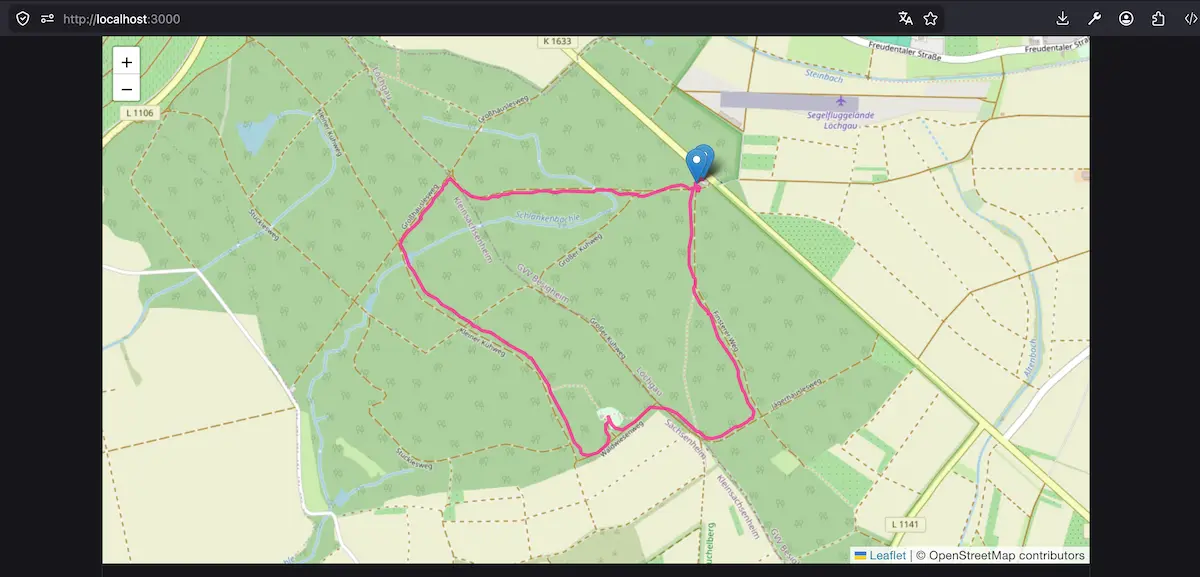
When you wired everything together correctly you get something like this:
Lessons Learned and Where to Go from here?
Integrating older libraries into modern setups can feel a bit awkward at times. But once you understand how they work, the solution is usually quite simple.
In this case, the key was understanding that not everything is built for ES modules and sometimes you need a small bridge to make things work together.
If you’re working with GPX data and Leaflet, this setup should give you a solid starting point.
If you're curious what I'm doing with GPX data, Leaflet or other stuff in the future consider to subscribe to my newsletter.
Thanks!